Invoicing & Credit Notes
Managing the lifecycle of invoices, corrections, and refunds.
Invoicing & Credit Notes
Invoices are the accounting backbone of your transactions. The Payment Gateway generates locked invoice PDFs and configured e-invoice XML formats for successful captured payments. Your organization remains responsible for validating document settings, numbering, tax treatment, and jurisdiction-specific legal requirements.
Document Detail Views
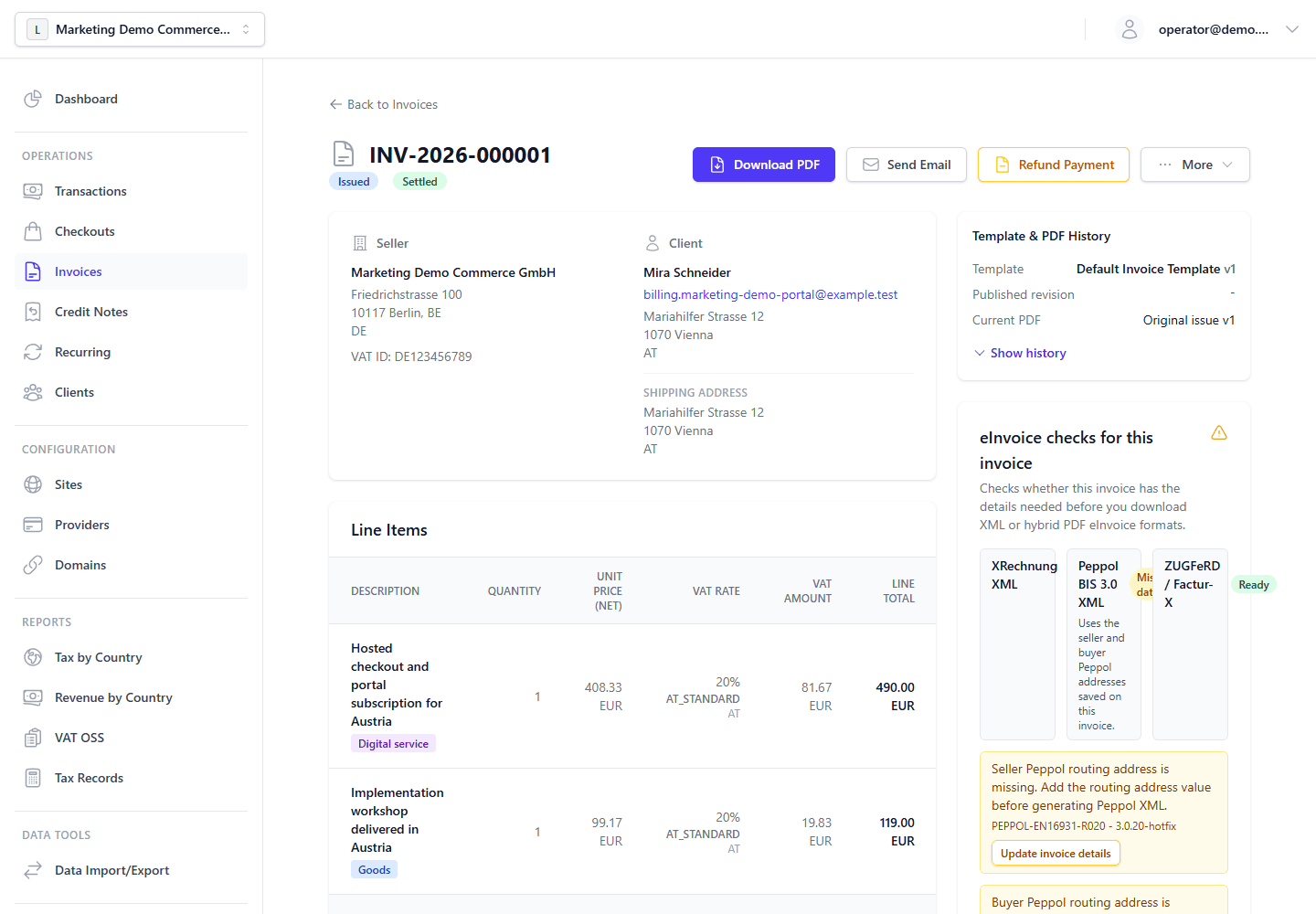
In the Admin UI, invoice and credit note detail pages use the same party structure:
- Seller: The legal entity issuing the document.
- Client: The billed counterparty shown on the document snapshot.
This keeps invoices, credit notes, and transaction detail views consistent inside the admin control plane.
When the document is linked to a stored Client record, the Client email in the detail view links directly to that Client profile. This gives operators a quick path from a document to the broader relationship history without changing the legal document itself.
The document still preserves its own party snapshot, including the buyer Peppol routing address when present. If the current Client profile changes later, the already-issued invoice or credit note continues to show the original document data that was valid at issuance time. For issued invoices, update the invoice snapshot through the correction workflow.
Invoice Statuses
Invoices exist in strict states to maintain accounting integrity:
draft: The invoice is currently being constructed. You can edit line items, change the billing address, or delete it entirely without leaving an accounting trace.issued: Once the "Issue" button is clicked (or a transaction succeeds automatically), the invoice is locked. An official sequentialInvoiceNumberis permanently assigned. The line items and total amounts can never be changed again.- Payment state (computed): Whether an invoice is open, partially settled, settled, credited, refunded, or overpaid is derived from linked settlements and credit notes rather than stored as a separate mutable invoice status.
- Void / refund workflows: If an issued invoice is critically wrong or must be reversed, the platform creates the appropriate reversal artifact and keeps the original invoice on file as part of the permanent accounting record.
Draft invoices can only download a pro forma PDF. XML e-invoices and hybrid ZUGFeRD / Factur-X PDFs become available after the invoice is issued because the final invoice number is assigned during issue. The eInvoice checks shown on a draft are pre-issue guidance: they identify seller, buyer, payment, tax, and Peppol routing data that users can fix before issuing, but they are not proof that XML can already be downloaded.
Draft Invoice Tax Calculation
When creating or editing a draft invoice manually, VAT can be either automatic or explicit on a per-line basis.
- Leave the VAT field blank to let the backend calculate tax automatically.
- Enter a VAT percentage only when you intend to override the automatic result for that line item.
- The Admin Panel now previews the canonical backend tax result before save, including the resolved rate code when available.
The same tax engine is used for transactions, recurring invoices, API-key draft invoice creation, and the draft-invoice preview endpoint, so the behavior stays consistent across flows. For lifecycle, OSS evidence, and ledger concepts, see Invoicing & Tax architecture; for POST /api/v1/invoices/preview-tax and tax report routes, see Admin API.
When a draft is issued, the invoice stores the resulting tax snapshot and writes canonical tax records. Depending on the organization tax recognition mode, those records are recognized at invoice issue time (accrual) or deferred until settlement (cash). Credit notes write separate offsetting tax records; the original invoice tax snapshot remains unchanged.
Payment Links
Issued invoices can have hosted payment links created manually from the invoice payment section or automatically during issue when Settings > Invoicing > Auto-create payment link on issue is enabled.
Manual invoice payment links default to the current outstanding amount, but operators can create a smaller partial-payment link. The backend caps the amount at the outstanding balance, enforces a 0.50 minimum, and rejects empty or fully settled invoices.
Payment-link expiry uses the same invoicing setting as automatic issue-time links. If no value is configured, the default is 336 hours (14 days); explicit expiry values can be between 1 and 3120 hours.
For reverse-charge, export, exempt, zero-rated, and manual VAT outcomes, invoice checkout creation keeps the invoice tax snapshot but avoids sending synthetic tax-rate codes to checkout tax-rate lookup. When a transaction settles a partial link, the invoice settlement logic allocates tax proportionally from the invoice.
The Customer Portal
Rather than emailing large PDF attachments that may be blocked by spam filters, the gateway hosts a secure Customer Portal.
End-users navigate to your custom domain (e.g., invoices.yourcompany.com) and authenticate using a one-time secure link, with OTP confirmation available where configured. From there, they can independently:
- Download portal-visible invoice and credit-note PDFs when PDF downloads are enabled.
- Pay eligible open invoices when a payment link is available.
- See scheduled finalization timing for draft recurring invoices when
scheduledFinalizeAtis present. - Download issued invoice XML: XRechnung, Peppol BIS 3.0 XML, or ZUGFeRD/Factur-X CII if configured.
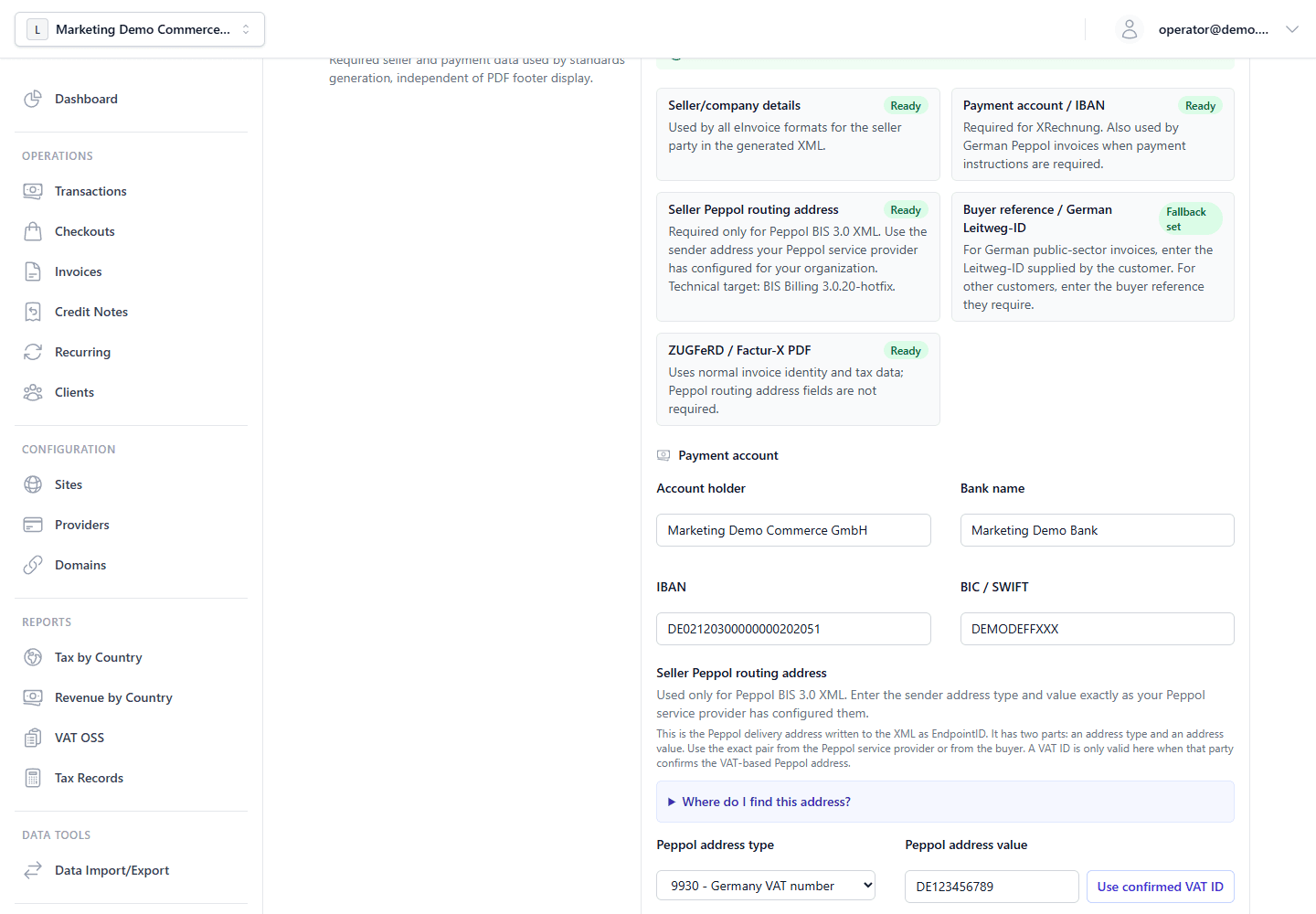
E-invoice settings control XRechnung, Peppol, and ZUGFeRD readiness. Seller Peppol routing address is the seller EndpointID written into Peppol XML; use the sender address type and value configured by your Peppol service provider. Buyer Peppol routing address is the delivery address supplied by the recipient or their Peppol service provider. Choose the address type separately from the value; for example, select 0088 only for a supplied GS1 GLN or 0204 only when a German public-sector recipient confirms its Leitweg-ID as the Peppol receiver address, then enter only the identifier value without the prefix. Do not assume VAT ID is correct unless the recipient confirms a VAT-based Peppol address type. Germany-only: Leitweg-ID is the buyer/public authority reference for German public-sector invoices and should come from the order or contract.
Credit Notes (Refunds)
Because issued invoices are strictly immutable, you cannot simply edit the total amount to reflect a refund.
Instead, you must issue a Credit Note. A Credit Note is a separate legal document that mathematically counters the original invoice.
The original invoice always remains part of the accounting record. Refund and reversal outcomes are represented by linked settlement totals and credit notes, not by editing or replacing the invoice itself.
If an invoice is linked to payment records, the authoritative reversal workflow is refund-first.
- Open the Invoice or the linked successful Transaction.
- If exactly one refundable transaction is linked, click Refund Payment directly from the Invoice screen and complete the same refund form used in the Transaction screen.
- If multiple refundable transactions are linked, choose the relevant Transaction from the Invoice payment section and process the refund there.
- Choose to perform a full or partial refund.
- The system communicates the refund request to the upstream Provider (e.g., Stripe), records the refund against the linked invoice settlement state, and generates the Credit Note document for the Client.
When an invoice has no linked payment refund path, the Invoice screen offers a Create Credit Note workflow for document-side full or partial reversals.
Credit notes therefore serve two purposes:
- They provide the reversal document used for accounting and tax records.
- They explain why the invoice payment state may move to partially refunded, refunded, or fully credited without changing the original invoice contents.
Tax reporting follows the same principle. Refunds, fund-impacting chargebacks, and credit notes are represented as negative adjustment records linked to the original sale or invoice; the original tax record remains part of the audit trail. Adjustment records preserve line-level tax country and VAT rate code where available, which keeps mixed goods and digital-service sales aligned with their original reporting basis. If the source only has aggregate tax breakdown data, the adjustment still preserves untaxed residuals as their own line basis and caps over-allocated breakdowns to the recorded refund or chargeback total.
Refund-created credit notes inherit the original invoice's Seller and Client snapshot. That means the reversal document stays legally aligned with the invoice it offsets, even if the current Client profile has changed since the invoice was issued.
Chargebacks follow dispute outcome. Open or under-review chargebacks can reduce revenue reporting as payment-risk adjustments, but they do not issue a legal credit note yet. If the dispute is lost or accepted, the platform creates the chargeback credit note; if the dispute is won, active chargeback tax adjustments are voided and no credit note is issued.
Final merchant-loss outcomes (lost and accepted) can also create a Customer Risk Hold for the buyer. That hold is separate from invoice dispute status and from credit-note creation: it controls whether future checkout attempts are blocked, routed to manual review, or limited to safe manual payment methods such as wire transfer. A won dispute does not create a Customer Risk Hold.
[!IMPORTANT] The platform intentionally does not offer a paid-invoice workflow that creates a stand-alone credit note while leaving the linked payment untouched. For paid invoices, the credit note should follow the refund workflow so cash movement, settlement state, and accounting documents remain aligned.
Numbering Configuration
Organizations control invoice and credit note numbering from the invoicing settings page.
Each organization configures two independent document layouts: one for invoices and one for credit notes.
Each layout can define:
- a dedicated prefix
- optional middle text between the visible period and the sequence
- an optional suffix
- the first sequence number to allocate
- the zero-padding width of the numeric sequence
- whether the visible period uses no date, the calendar year, or the fiscal year
- whether the sequence resets never, every calendar year, or every fiscal year
- how much of the issue date appears in the number
- how date parts are separated when month or day are shown
If a layout uses No date, the sequence is appended directly after the prefix unless you provide explicit middle text. This avoids accidental doubled separators for prefixes that already end in punctuation such as -.
Typical layouts include:
No date→ example:INV-0001Year→ example:INV-2026-0001Year + Month→ example:INV-2026-03-0001Year + Month + Day→ example:INV-2026-03-27-0001Fiscal year with middle text→ example:INV2027AR0001Fiscal year with suffix→ example:CN-2026-0001-REV
When the separator is set to None, date parts are compacted:
INV-20260327-0001
When fiscal numbering is enabled, the backend derives the year label from the actual issue date and the configured fiscal-year start month. That same fiscal definition also drives the optional fiscal-year reset policy.
Numbers are allocated sequentially from an organization-scoped counter shared by all sites. Administrators may make an explicit, audited forward adjustment to the active invoice sequence when continuing after invoice numbers issued outside the application. That operation can create an intentional gap; it cannot move backward or renumber existing documents. Changing the layout affects newly allocated numbers only. Existing invoices and credit notes keep their assigned document numbers permanently.
Continuing an existing invoice range
Use Settings > Invoicing > Active invoice sequence > Set next invoice number after the first application-managed invoice exists in the active calendar or fiscal bucket. The review step shows the current and proposed formatted numbers, the active bucket, legal timezone, skipped count, and organization-wide scope. A reason of at least 10 characters is stored with the audit record.
The control is forward-only and uses optimistic concurrency: if another invoice is allocated while the dialog is open, refresh and review the new current sequence before confirming again. The configured Starting number applies only when a bucket is first created; it is not the control for changing an active sequence.
[!IMPORTANT] Set the next number before enabling automatic creation when external or manually issued invoices already occupy later numbers. The control adjusts only the bucket currently active in the organization's legal timezone. Invoice allocation continues resolving calendar or fiscal buckets from each invoice's issue date; historical backfill policy is outside this control.
Document Template Customization
Organizations can create custom PDF document templates for invoices, pro forma documents, credit notes, and receipts under Settings > Templates. The template editor supports Designer mode, Advanced Source, custom variables, import/export, PDF proofs, publishable revisions, defaults, and explicit layout refresh for already-issued PDFs.
For the full workflow, source modes, variable placement, revision behavior, portal impact, and defaults, see Templates.