Sites & Domains
Set up discrete storefronts, manage API keys, and configure custom domains.
Sites & Domains
While an Organization represents your company, a Site represents a specific storefront, product line, geographical market, or channel.
[!NOTE] Professional and Business license tiers include unlimited sites per organisation. The Starter tier includes up to 3 sites per organisation. There is no limit on the number of storefronts, domains, or checkout surfaces you can operate under a single organisation on Professional or Business plans.
All financial activities (Transactions, Checkouts) are ultimately tied to a specific Site.
Managing Sites
By creating multiple sites, you can compartmentalize operations without running multiple deployments.
For example:
- Site A:
mystreamingsite.com(streaming subscriptions with recurring billing) - Site B:
webshop.example.com(B2C webshop with card and wallet payments) - Site C:
anothershop.com(B2B invoicing with wire transfer and manual reconciliation)
Each site can maintain its own:
- Connected Payment Providers: (e.g., Stripe for EU, GoCardless for UK).
- Notification Settings: Dedicated webhooks or email sender profiles.
- Invoice Overrides: Site-specific logos, footers, or numbering prefixes that override the Organization's default settings.
- Checkout/Route Context: Site-targeted checkout sessions and endpoint usage in your backend integration.
Programmatic site management uses the Admin API (GET, POST, PUT, and DELETE on /api/v1/sites and /api/v1/sites/:id). See Admin API Reference.
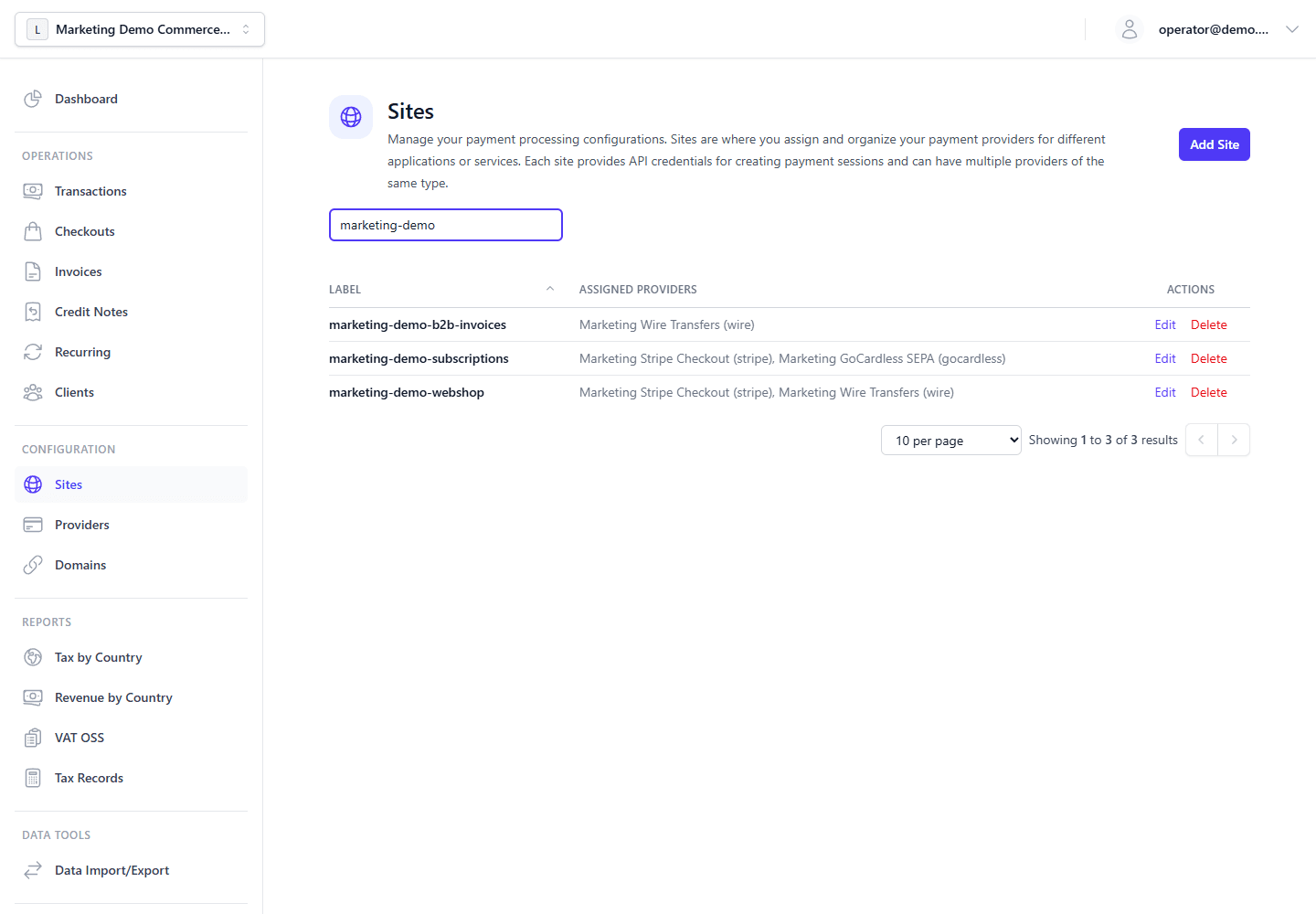
Provider Routing per Site
Each site can expose a different set of payment rails. This keeps provider credentials and checkout behavior explicit instead of making every organization-level provider available everywhere by default.
API Keys & Authentication
To interact programmatically with the Payment Gateway (for example, to create a Checkout Session from your own backend), you must generate an Organization API Key.
- Navigate to Settings → API Keys in the Admin panel.
- Generate a new key and assign it specific scopes (for example
checkout:createfor creating checkout sessions from your server or official plugins). - The system returns a secret token (formatted like
sk_<id>.<secret>).
Your trusted server-side runtime should use this key as a Bearer token to authenticate REST requests against your configured Admin API host (not the Main Backend / payment-hooks host):
POST https://api.yourcompany.com/api/v1/checkouts/{siteId}/create
Authorization: Bearer sk_<id>.<secret>
The default reverse proxy can also rewrite /v1/* to /api/v1/* on ADMIN_BACKEND_DOMAIN, but customer integrations should prefer the canonical /api/v1 path because it matches the backend route registration and generated API reference.
[!NOTE] Use your real
ADMIN_BACKEND_DOMAINvalue (oftenapi.*; hosted:api.payment-gateway.app). Provider webhooks and checkout runtime useMAIN_BACKEND_DOMAIN(oftenwebhook.*; hosted:webhook.payment-gateway.app) — Hostnames & DNS conventions, Self-Hosted Installation.
[!NOTE]
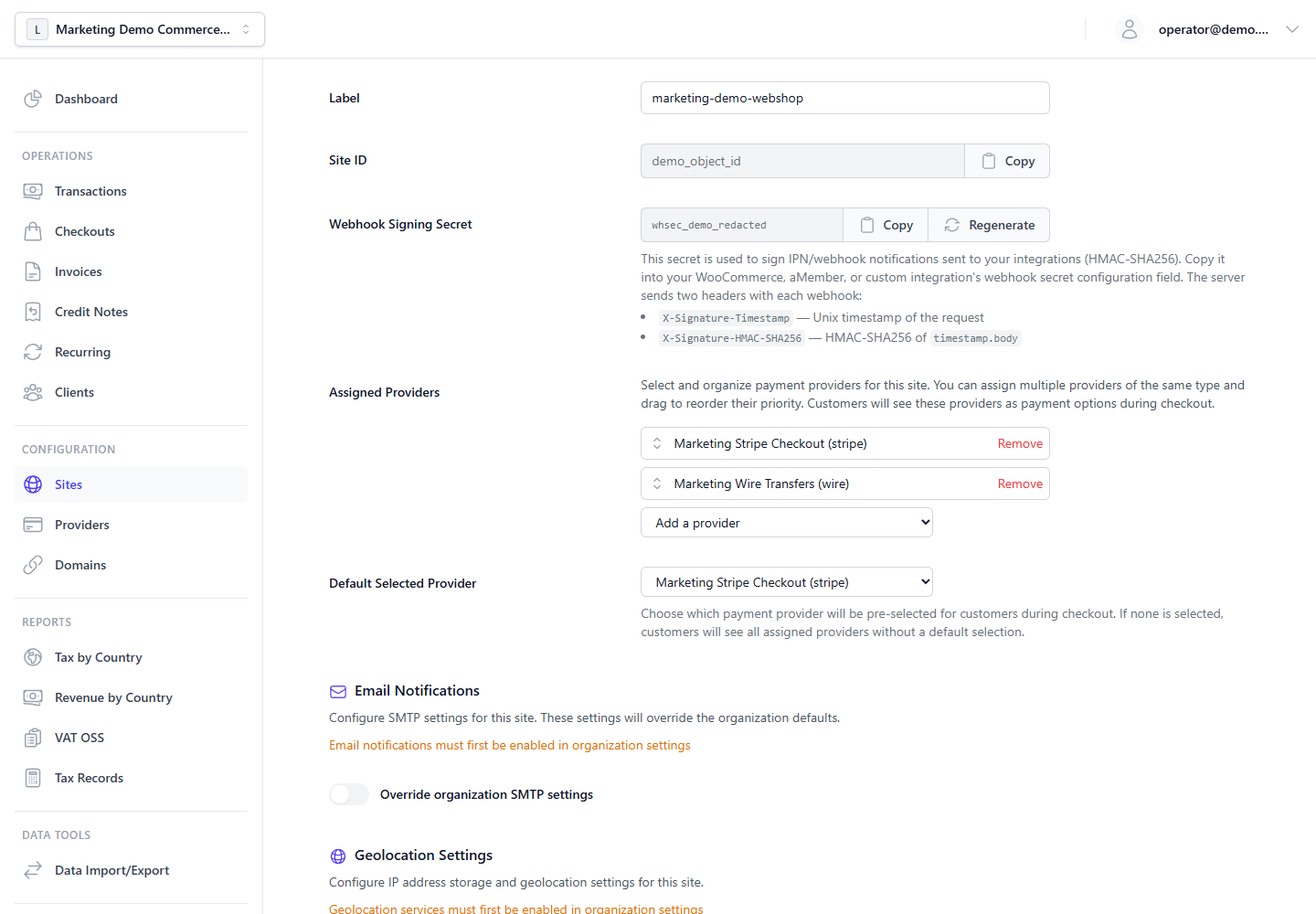
{siteId}is the Site id (MongoDB ObjectId from Sites → Edit).
[!NOTE] The Webhook Signing Secret also lives on Sites → Edit Site. Use it to verify outbound IPN requests sent to your own
ipnUrl. It is site-specific, while API keys stay organization-scoped.
For turnkey store integrations (WooCommerce, aMember Pro), see E‑commerce integrations.
The API domain is typically separate from the Admin Panel domain. Operators log
into the dashboard on ADMIN_FRONTEND_DOMAIN (e.g. dashboard.yourcompany.com or admin.yourcompany.com; hosted: dashboard.payment-gateway.app), while
backend integrations call ADMIN_BACKEND_DOMAIN (e.g. api.yourcompany.com; hosted: api.payment-gateway.app).
[!CAUTION] Treat your API key like a password. Never expose it in browser/mobile client code (
HTML,JS, app bundles). Use it only in trusted server-side runtimes you control (for example: backend services, server-side workers, or secure edge functions).
If a key is compromised, you can instantly revoke and roll it from the Admin interface.
Dashboard and Data Import/Export Scope
Site Invoicing Overrides
Sites inherit the organization-wide numbering layouts for both invoices and credit notes.
That means a site can use its own invoice or credit note prefix, but it does not create its own numbering sequence or period logic. The organization still controls:
- starting numbers
- digit width
- reset policy (
Never,Calendar year, orFiscal year) - whether the visible period uses no date, the calendar year, or the fiscal year
- date detail (
Year,Year + Month,Year + Month + Day) - date separator (
DashorNone) - fiscal year start month and fiscal label style
- middle text and suffix
This keeps document numbers unique across the organization while still allowing brand-specific prefixes per site.
The dashboard therefore presents invoice and credit-note numbering policies separately whenever their layouts differ.
Sites can also override the PDF template and branding used for invoices. This is useful when multiple storefronts share one organization but need different logos, colors, or footers on customer-facing documents. The template override stores the selected document template ID, so generated PDFs use that exact template instead of only falling back to the organization default.
The site-level override applies to invoice PDF generation and keeps the rest of the document data organization-scoped: numbering sequence, legal seller settings, tax calculation, VAT breakdown data, and billing/shipping snapshots still come from the invoice or credit-note source document. Pro forma, credit-note, and receipt templates remain managed under Settings > Templates by document type. See Templates for the full template workflow.
Dashboard widgets, transaction views, and import/export workflows run in the currently selected organization scope.
This means:
- teams can operate multiple sites in one organization from one dashboard,
- and still keep data boundaries clear between organizations.
Custom Domains
To provide a seamless, white-labeled experience for your customers during checkout and when accessing the Customer Portal, you can configure Custom Domains.
These domains are often operationally important, not only cosmetic. Many payment providers expect checkout pages, return URLs, and webhook endpoints to stay on domains you control and have registered in the provider dashboard. Keeping branded, stable domains for checkout and webhook traffic helps reduce provider onboarding, domain-verification, and buyer-trust friction during provider review.
Under Domains, you can map your own subdomains (e.g., pay.yourcompany.com or invoices.yourcompany.com) to the gateway.
- Ensure you have added the correct CNAME or A records to your DNS provider pointing to the Gateway's infrastructure.
- Add the Domain to the Admin panel.
- The platform will automatically provision and renew TLS certificates for your domain, ensuring a secure
https://connection for your buyers.
[!IMPORTANT] If your gateway frontend or webhook target hostname is itself served through Cloudflare with Proxy status = Proxied, third-party custom domains that are not hosted on Cloudflare can fail TLS negotiation at Cloudflare before any request reaches the gateway origin. In that case, automatic origin-side certificate provisioning is not enough on its own.
When this applies, use one of these approaches:
- Disable Cloudflare proxying on the related gateway target hostname so traffic reaches the origin directly.
- Or enable Cloudflare for SaaS / Custom Hostnames and provision the customer hostname in Cloudflare before routing traffic through the proxy.
See Hostnames & DNS conventions for the DNS model and Cloudflare caveat.