Tax Configuration Examples
Scenario-based examples for configuring VAT, OSS, reverse charge, gross/net prices, and tax reporting.
Tax Configuration Examples
These examples show how merchants typically configure tax. They are implementation recipes, not tax advice. Confirm the final setup with your tax advisor before relying on it for filing.
Before You Start
Configure the shared foundation first:
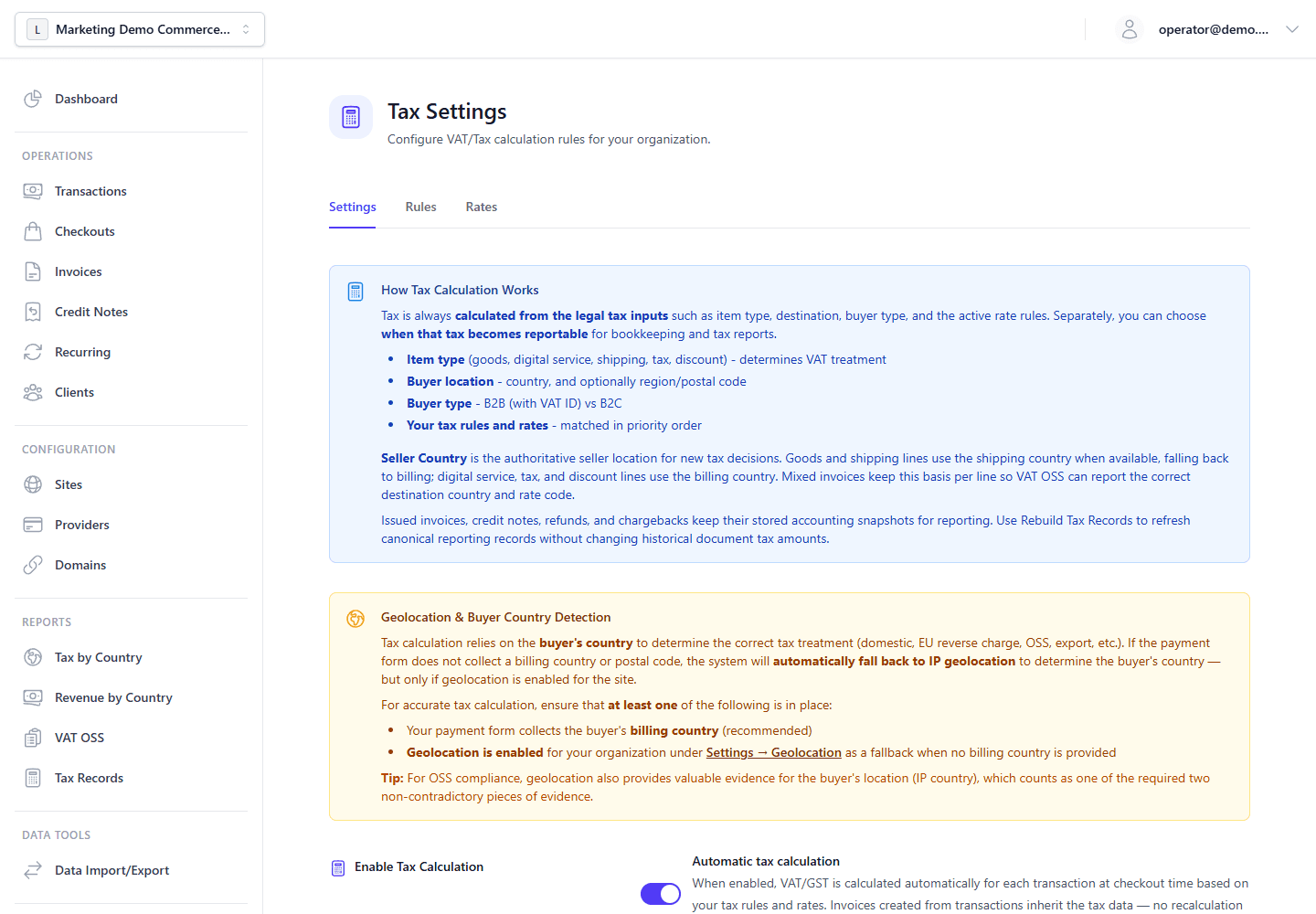
- Open Settings > Tax.
- Enable tax calculation.
- Set seller country and seller VAT/tax identifiers.
- Choose whether your displayed prices normally include tax.
- Choose the rounding method.
- Load default tax rates or create your own effective-dated rates.
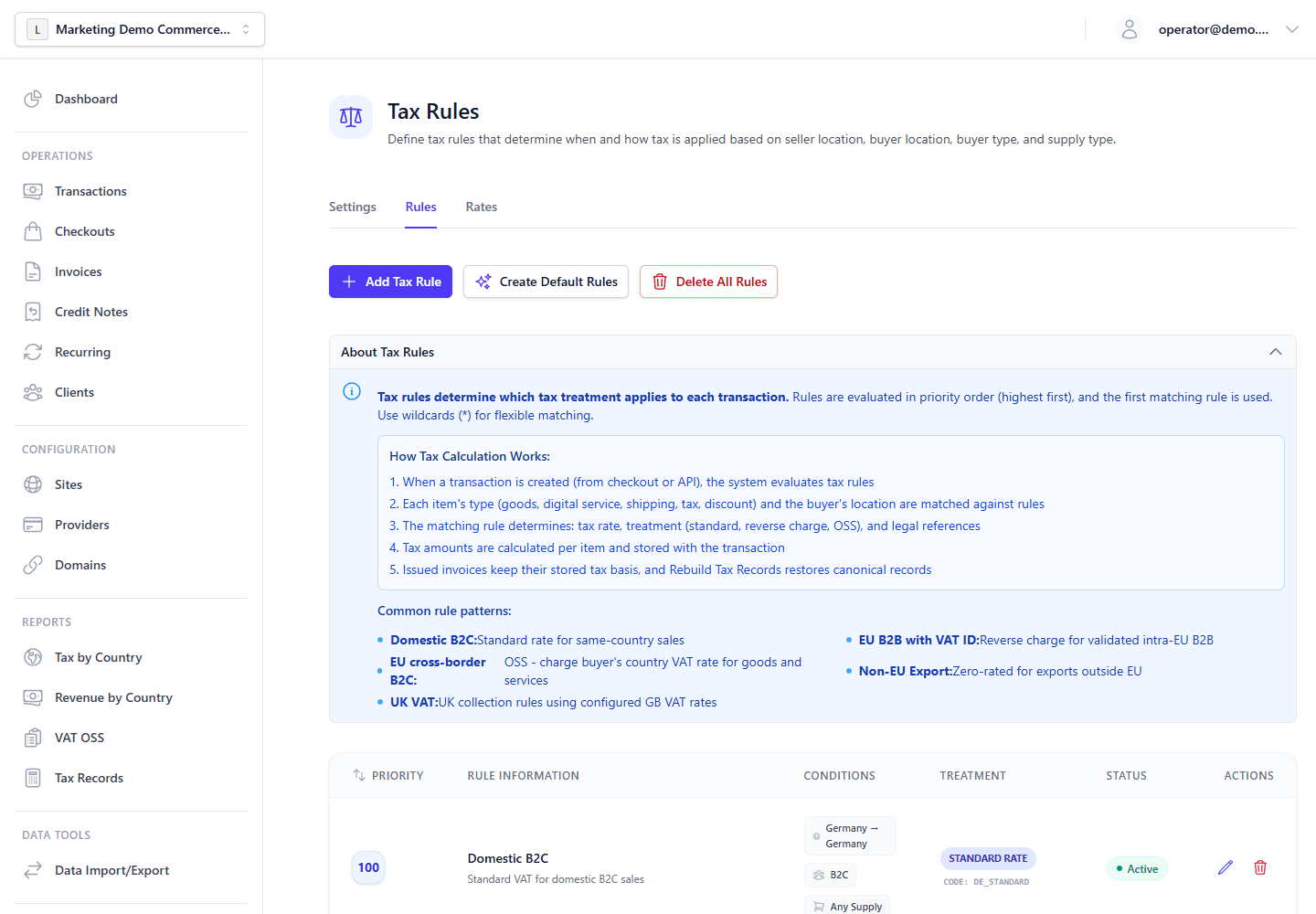
- Create rules that match your sales scenarios.
Example 1: German Seller, Domestic B2C
Use this when a German seller charges German consumers.
Recommended setup:
- Seller country:
DE - Tax calculation: enabled
- Price mode: choose gross if storefront prices already include VAT
- Rate:
DE_STANDARDat19 - Rule:
- Seller country:
DE - Buyer country:
DE - Buyer type:
B2C - Supply types:
*or the specific item type - Treatment:
standard - Rate code:
DE_STANDARD
- Seller country:
Expected behavior:
- Checkout previews German VAT.
- Transactions store
totalNet,totalTax,totalGross,taxBreakdown, and a standard tax decision. - Reports group the sale under Germany.
Example 2: German Seller, EU B2B Reverse Charge
Use this when a German seller sells to a VAT-registered business in another EU country.
Recommended setup:
- Seller country:
DE - VIES validation: enabled
- Checkout VAT validation:
viesunder Settings > Checkout - Rule:
- Seller country:
DE - Buyer country:
EUor the target country, depending on your rule design - Buyer type:
B2B - Supply types:
*or a narrower set - Treatment:
reverse_charge - Rate code: empty or a zero-rate code, depending on your reporting policy
- Legal reference: your reverse-charge reference text
- Seller country:
Expected behavior:
- The checkout exposes VIES-backed validation only when Settings > Tax allows it.
- A valid EU VAT ID can make the buyer
B2B. - The matching reverse-charge rule produces zero tax charged by the seller.
- The tax decision stores VIES validation metadata when available.
Set checkout VAT ID validation in Settings > Checkout so the buyer-facing flow can request and validate VAT IDs consistently with the tax settings above.
Example 3: EU VAT OSS B2C Cross-Border
Use this when an EU seller charges consumers in other EU member states under OSS.
Recommended setup:
- Seller country: your EU seller country, for example
DE. - OSS enabled: yes.
- OSS country and registration ID: set to your member state of identification.
- Rates: load or create standard rates for destination countries, such as
FR_STANDARD,AT_STANDARD,NL_STANDARD. - Rules:
- Seller country: your seller country.
- Buyer country: each target EU country, or use generated default OSS rules.
- Buyer type:
B2C. - Supply types:
*or your relevant supply types. - Treatment:
oss. - Rate code: leave empty in the editor; the destination country's active VAT rate is resolved when tax is calculated.
- Evidence requirement: enabled where your rule policy requires it.
Expected behavior:
- Checkout and transaction tax use the buyer country's VAT rate.
- In mixed baskets, goods and shipping lines use the shipping destination with billing country as fallback, while digital service, tax, and discount lines use billing country.
- For a DE seller with DE billing and AT shipping, a goods line should resolve to
AT_STANDARDand a digital-service line should resolve toDE_STANDARD. - For a DE seller with FR billing and CH shipping, a goods line should be treated as an export to
CH, while a digital-service line should resolve toFR_STANDARDunder OSS. - For a DE seller with CH billing and AT shipping, a goods line should resolve to
AT_STANDARDunder OSS, while a digital-service line should be treated as an export toCH. - The engine stores location evidence such as billing country, shipping country, IP country, payment method country, and phone prefix when available.
- Strict OSS evidence mode can block checkout when evidence is missing or conflicting.
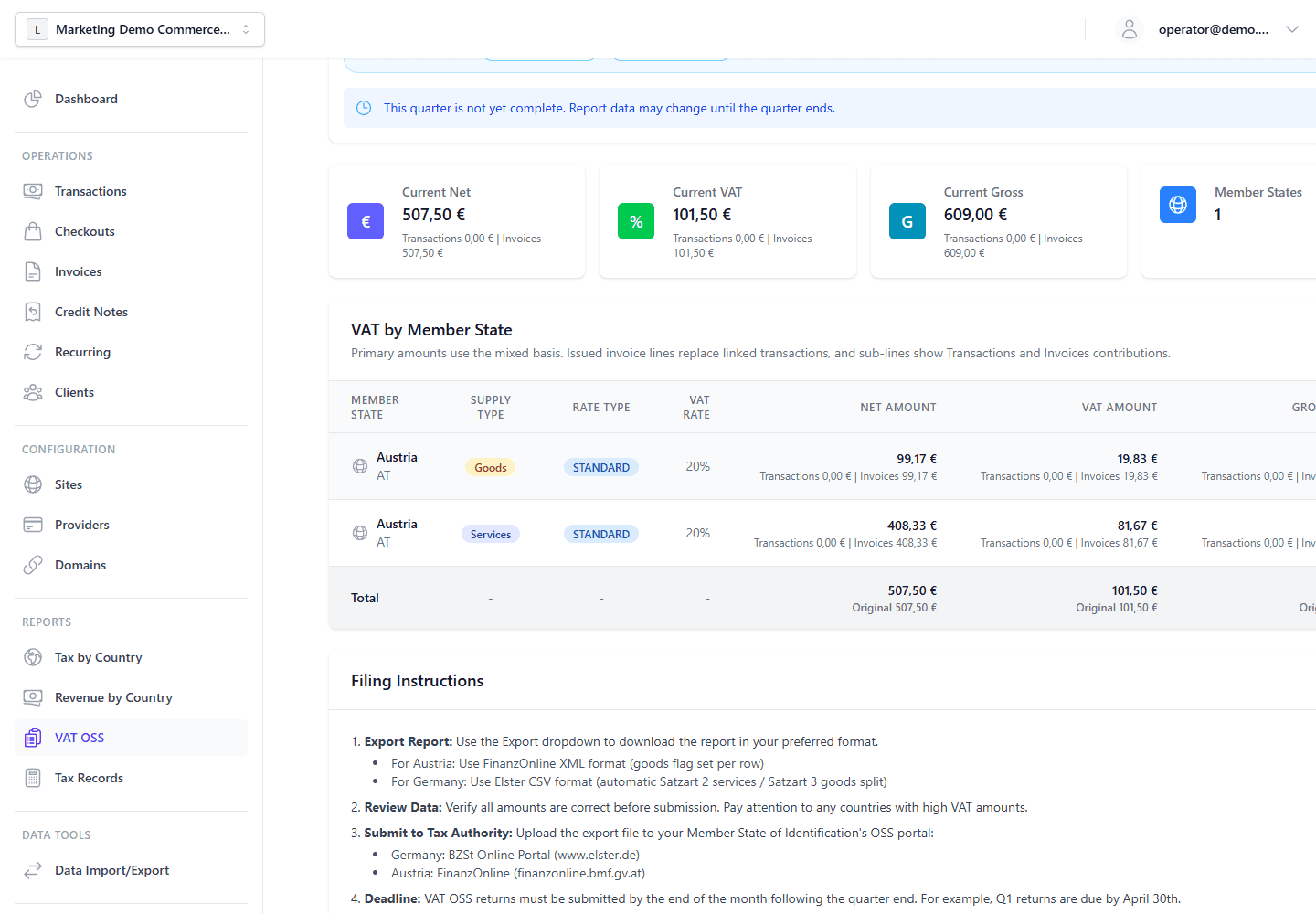
- VAT OSS reports aggregate active tax records by quarter, country, rate, and supply type.
Example 4: Gross-Price Checkout
Use this when storefront prices already include VAT, such as a EUR 49.00 consumer-facing plan.
Recommended setup:
- Settings > Tax > Prices include tax: enabled.
- Checkout item
unitPrice: gross amount in the smallest currency unit, e.g.4900. - Item
amountType: omit it when organization defaults are sufficient, or set it explicitly togrossif your integration sends mixed item modes.
Expected behavior:
- The backend extracts net and tax from the gross amount using the matched tax rate and configured rounding method.
totalGrossremains aligned with the buyer-facing amount.totalNetandtotalTaxare stored for invoices and reports.
Example 5: Net-Price B2B Checkout
Use this when your integration sends net prices and the gateway should add tax when applicable.
Recommended setup:
- Settings > Tax > Prices include tax: disabled.
- Checkout item
unitPrice: net amount in the smallest currency unit. - Rules: define whether the buyer scenario is standard, reverse charge, zero-rated, or exempt.
Expected behavior:
- Standard-tax buyers see tax added on top of the net amount.
- Reverse-charge or exempt buyers keep gross equal to net.
- Reports still receive canonical tax records even when tax charged is zero, as long as the source document carries tax metadata.
Example 6: Refunds And Credit Notes
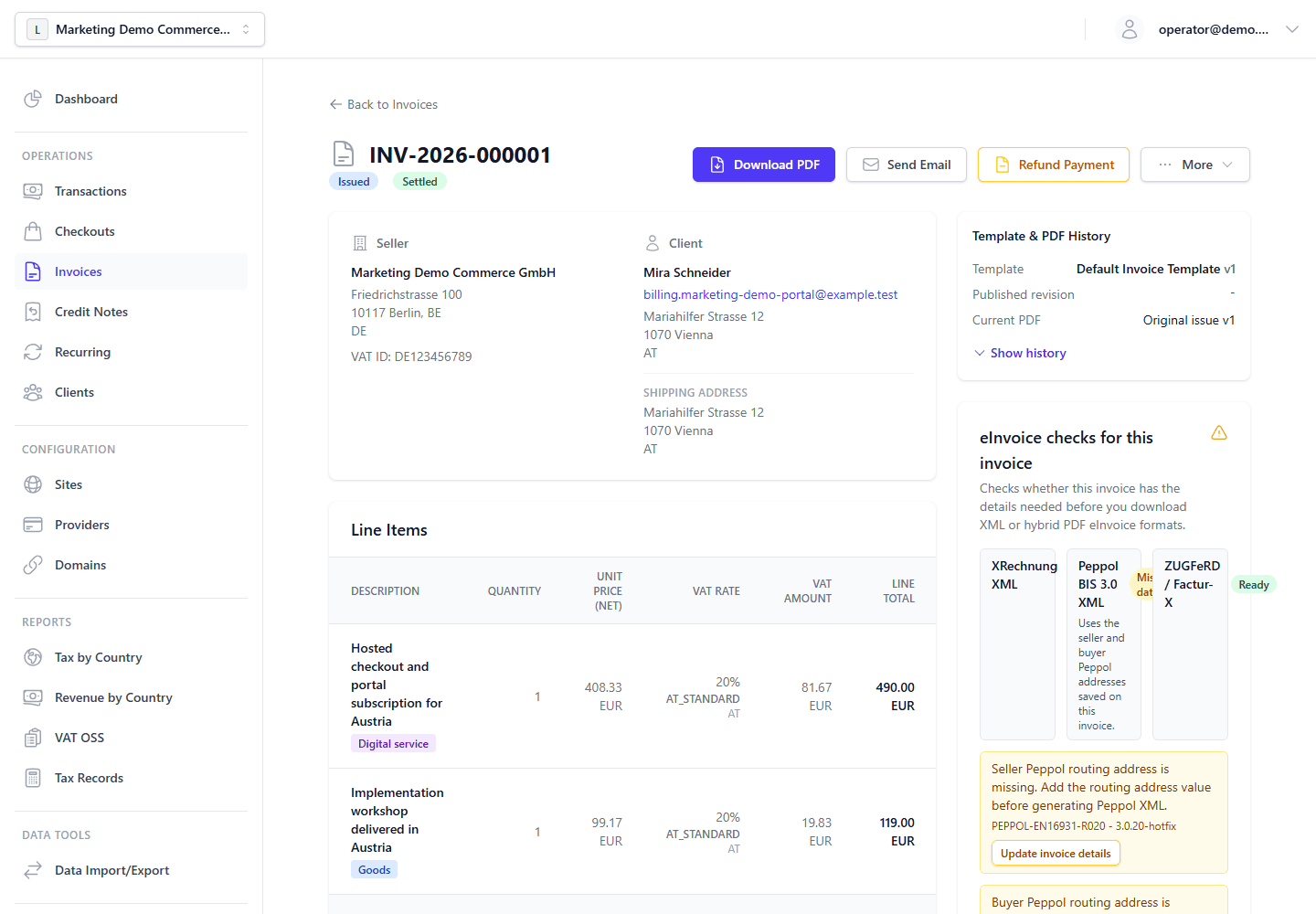
Use this when a paid transaction or issued invoice must be reversed.
Recommended workflow:
- Start from the transaction or invoice detail page.
- Use the refund workflow when payment has moved through a provider.
- Let the platform create the credit note when an invoice is linked.
- Review the transaction, invoice, and tax record links before filing.
Expected behavior:
- The original sale tax record remains unchanged.
- Refunds and chargebacks with resolved historical tax allocations create negative tax adjustment records.
- Credit notes create separate document-side tax records.
- Mixed-line adjustments preserve the original line country and VAT code where available.
- Historical zero-rated and exempt lines retain their original treatment; missing tax metadata is not evidence that a sale was exempt.
- Missing, contradictory, or insufficient historical basis remains unresolved. The system does not invent residual lines or cap malformed allocations to hide inconsistencies.
- VAT OSS and by-country reports reduce totals through adjustment records rather than rewriting the original sale.
Example 7: Repair A Legacy Gross-Only Chargeback
A standalone German sale has these stored historical lines at DE_STANDARD 19%:
| Line | Net | Tax | Gross |
|---|---|---|---|
| Goods | €33.57 | €6.38 | €39.95 |
| Shipping | €16.81 | €3.19 | €20.00 |
| Total | €50.38 | €9.57 | €59.95 |
A legacy full chargeback incorrectly stores €59.95 net and €0 tax. Although those amounts add up to the gross amount, they do not match the historical sale basis.
Run Rebuild Tax Records in Settings > Tax, review the dry-run result, then confirm execution. With this authoritative basis, the repaired chargeback is €50.38 net plus €9.57 tax. The negative canonical record reverses each original line, and the event allocation, cached totals, live Tax Details, and record references are reconciled together. No invoice or credit note is required for this standalone case.
Within the same reporting scope and period, the sale and full chargeback offset to €0 net, €0 tax, and €0 gross in Tax by country while remaining separately auditable. The domestic German case is not an OSS sale. A second rebuild creates no additional records and makes no semantic changes.
If the original historical basis cannot be established, the transaction is reported as unresolved and is not changed. Its actual dispute amount and status remain recorded, but the accounting must not be regarded as corrected until the missing history is resolved.