Templates
Designing document PDFs and notification messages with Designer mode, Advanced Source, variables, revisions, and PDF refresh workflows.
Templates
Templates control the customer-facing documents and operational messages generated by the gateway. Organization templates live under Settings > Templates and cover document PDFs plus organization-scoped notification channels. System-level email templates used with the system SMTP configuration for cross-organization portal notifications are managed separately under System > Templates by global administrators.
Template Types
The workspace manages two broad groups:
- Document templates: PDF layouts for invoices, pro forma documents, credit notes, and receipts.
- Notification templates: organization-scoped email, Slack, and SMS messages for payment, invoice, credit-note, and supported portal events.
Each document type and notification event has its own defaults, variables, validation rules, and publishable revisions. This lets an organization use different layouts for invoices, pro forma documents, receipts, and credit notes while keeping the editing workflow consistent.
Designer And Advanced Source
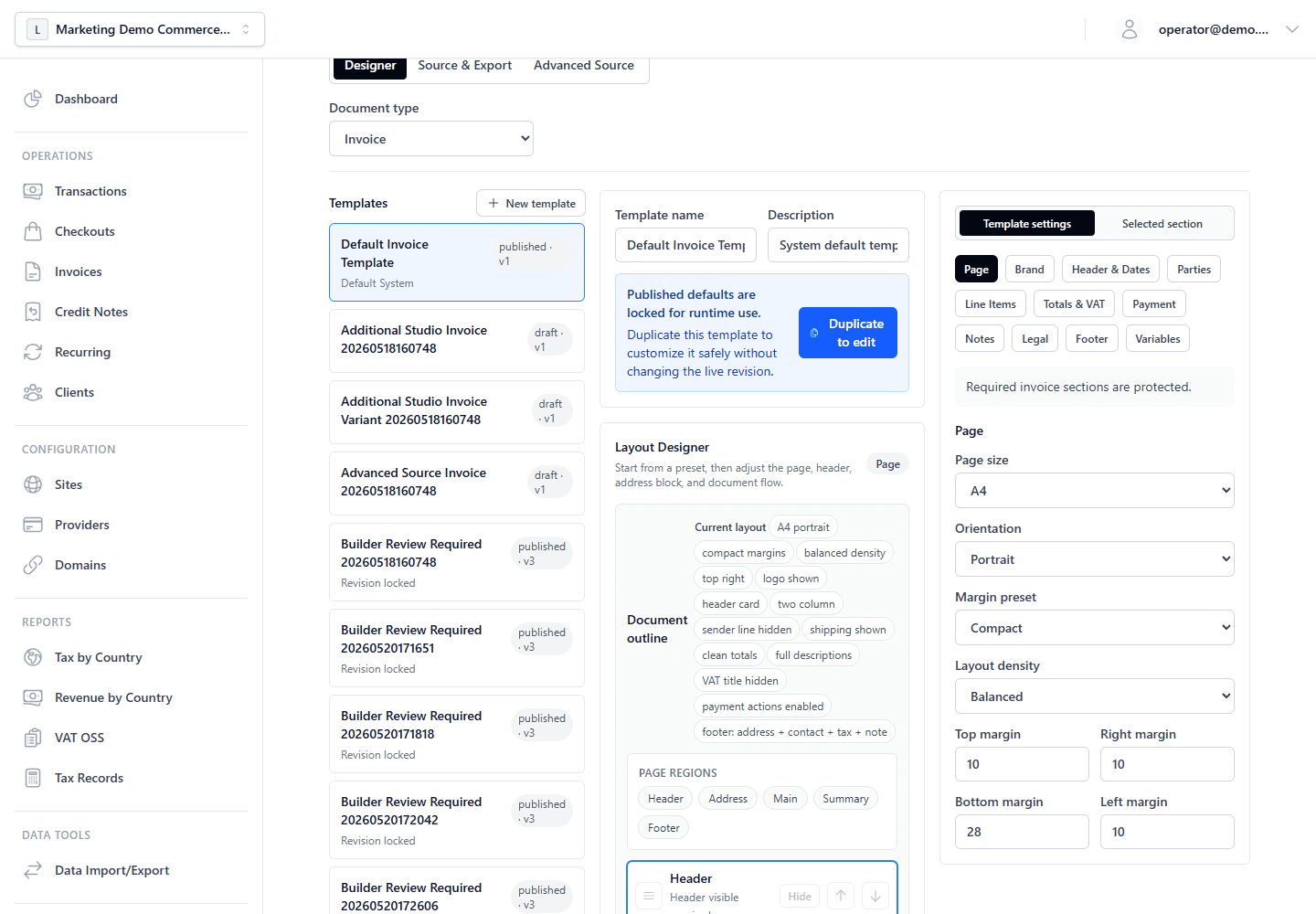
Designer mode is the default editing experience. It stores the editable source as a semantic builderDefinition: page setup, branding, document sections, visibility settings, labels, custom variables, footer groups, email blocks, and channel-specific message settings. The backend turns that builder definition into generated HTML, markdown, or text at preview, export, publish, and runtime.
Generated output is not the editable Designer source. In the Source & Export workspace, Designer templates show:
- the Designer JSON as the canonical source,
- the backend-generated HTML, markdown, or text as a read-only artifact,
- an export package that can be imported into another organization or environment.
Technical users can explicitly convert a template to Advanced Source when they need to author source directly:
- document templates use HTML,
- email templates use subject plus HTML,
- Slack templates use markdown or text,
- SMS templates use text.
After conversion, Designer controls are disabled for that template. Arbitrary HTML or text cannot be reliably converted back into semantic Designer controls.
Export And Import
Template exports use a stable JSON package with:
- metadata such as name, type, event, language, and source mode,
builderDefinitionfor Designer templates,advancedSourcefor Advanced Source templates,- a generated artifact from the backend renderer,
- validation state and export timestamp.
Imports always create a new draft template. They do not overwrite an existing default, published template, or system template. Imported raw HTML without a builder becomes an Advanced Source draft.
Variables And Placement
Variables use Go template syntax such as {{.InvoiceNumber}}, {{.Client.Name}}, or a custom variable like {{.PO}}.
Built-in variable groups include document numbers, dates, seller details, billed client details, shipping address, payment data, line items, VATBreakdown rows, notes, footer data, and custom variables. VAT breakdown rows include country-aware fields such as DisplayLabel, CountryCode, CountryName, CountryLabel, and VATBase.
Custom variables are template-level fields. When a selected template defines a variable, /invoices/create, /invoices/edit, and the Admin API can request a value for it. The value appears on a PDF only after the variable is placed in the template:
- add it to a Custom fields section for structured values such as PO number, project code, cost center, contract reference, or delivery note,
- insert its token into a custom text section,
- or place the token manually in Advanced Source.
Empty custom field values are hidden in the rendered document.
Document Layout
Document Designer uses PDF-safe layout controls instead of a freeform canvas. Operators can configure:
- page size, margin preset, and density,
- logo visibility, position, and size,
- title and metadata labels,
- billing and shipping address visibility,
- line-item column labels and table density,
- subtotal, VAT breakdown, VAT total, and grand total labels,
- payment terms, payment link, QR code, and bank detail visibility,
- notes, legal text, watermark behavior, and footer groups,
- custom text, custom fields, divider, and spacer sections.
Required document semantics stay protected. For invoices, the billed recipient, line items, grand total, required notices, and required footer behavior cannot be removed when the business rules require them. Optional sections can be hidden, reordered, or replaced with custom blocks.
PDF proofs use the same backend rendering path as runtime PDF generation. Use Generate PDF proof before publishing a revision when layout, margins, footer visibility, or variables changed.
Defaults And Selection
Templates can be used at several levels:
- organization default for each document type and notification event,
- site-level invoice PDF override for storefront-specific branding,
- selected invoice or pro forma template during draft creation or editing,
- credit-note and receipt defaults by document type.
Only one published template can be default for a given scope, channel, type or event, and language. Creating or importing an additional template creates a draft until it is explicitly published and set as default.
System templates are read-only defaults in the organization workspace. Duplicate a system template before editing it for an organization.
System Templates
Global admins can also manage system-level email templates under System > Templates. Those templates are used with the system SMTP configuration for cross-organization messages such as portal OTP verification. They are separate from organization templates under Settings > Templates, which are scoped to the selected organization and its document/notification defaults.
Revisions And PDF Refresh
Publishing creates a locked revision that snapshots the source mode, builder definition or advanced source, generated subject/body artifacts, and validation state. Issued documents keep their original revision for reproducibility.
For issued invoices and credit notes, layout changes do not automatically rewrite existing PDFs. An admin can use the document detail page to preview the latest layout and explicitly refresh the current PDF with an audit reason. A successful refresh creates a new PDF rendition, updates the current admin download, and keeps the original issued PDF available for history. If rendering fails, the previous current PDF remains in place.
Customer portal downloads use the document's current PDF only when portal PDF downloads are enabled in Settings > Portal. After a successful layout refresh, portal users receive the refreshed PDF; during a queued or failed refresh they continue to receive the previous valid PDF.
Recurring schedules keep a template preference. Generated recurring drafts use the current template state; once issued, the document locks the published revision just like a manually issued invoice.